Augustus Skipworth & SkipWire Laboratories proudly present
The IdleButtons…put to work!
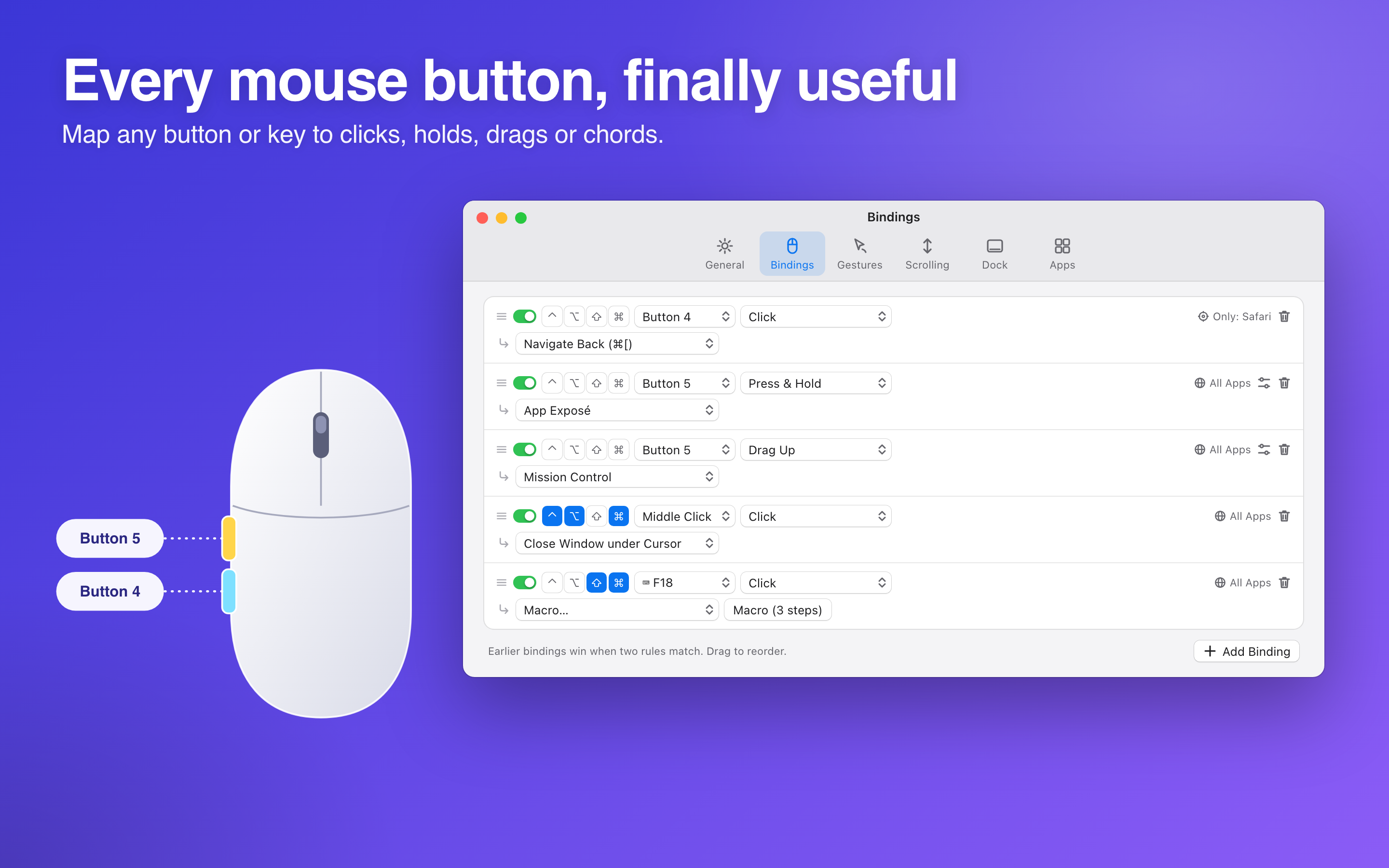
MacHancer is a menu-bar app for Mac that gives your mouse the powers of a trackpad. Hold Button 5 and swipe for Mission Control, App Exposé and Spaces. Hold Button 4 and flick a window into place. Middle-click the Dock, scroll smoothly, and rebind anything to anything.
Two buttons. Zero days off. Further!
Ships with sensible defaults, and every one of them is yours to change. No account. It collects no data and makes no network connections.
“On the desk of the future, ladies and gentlemen, no hand will travel to a corner of the screen to ask for a window. The window will be told where to go. And it will go.”
The Narrator
Thank you, Narrator, that'll do. Folks, Gus Skipworth. Your mouse has two buttons on its side that have never done a day's work in their lives. I don't keep anybody on the payroll who doesn't work. Except the accountants. They're sedated. Hold still, the future's loading.
Augustus Skipworth, from his desk, on its monorail
Runs onmacOS 14 or later
Buttons put to work4 · 5 · middle · and up
Accounts requirednone whatsoever
Data collectednone
Work done by your own Buttons 4 and 5 since you arrived
0
Button 4 · 0Button 5 · 0
The accountants offered to estimate this. Press them yourself; it's more accurate. No side buttons? Hold the 4 or 5 key instead.
5This page is MacHancer-equipped.
Hold Button 5 (or the 5 key) anywhere and swipe: left or right moves between Reels, up shows every Reel at once, down spreads out the exhibits. Hold Button 4 (or 4) over any picture and flick it to a side of the screen. Your browser's Back stays where it is. Mr. Skipworth insisted.
Reel 2 · The Incident at the Monorail Desk
A True Story, MostlyWho Paws at a Trackpad?
Thursday morning · the Skipworth Memorial Hangar · the desk, on its monorail, somewhere between bed and breakfast
A young Skipwright has brought a laptop to the Founder's desk. She lays four fingers on its trackpad and pushes them upward. Every window on the screen leaps back and arranges itself in rows, like a regiment.
The Founder watches this twice. He does not touch the trackpad. He has a mouse. It is brass where it is allowed to be, and it has not been asked to do anything new since it was delivered.
The Founder
“What did she do?”
Miss Pell
“Swiped.”
The Founder
“I don't paw at things, Pell. I point at them. Make the mouse do that.”
Miss Pell turns the mouse over in one hand. On its left flank are two small buttons nobody in the hangar has ever pressed on purpose.
Miss Pell
“These do Back. And Forward.”
The Founder
“Forward is the only direction I recognize. Further! The other one can tidy the windows.”
She takes the mouse to the workshop under the oak. It comes back on Monday. Nothing about it looks different. Everything about it is.
The Narrator adds
Mr. Skipworth has described this as the morning he invented the swipe. The young Skipwright had invented it some years earlier, and so had the company that made her laptop. Miss Pell has entered the mouse in her Ledger under her own name, in pencil, which is how she enters everything.
On a trackpad you would
With MacHancer, you hold, move, and let go
Swipe up with three or four fingers
Button 5, swipe up. Mission Control.
Swipe down with three or four fingers
Button 5, swipe down. App Exposé.
Swipe sideways between full-screen apps and Spaces
Button 5, swipe left or right. The next Space over.
Drag a window to a screen edge and wait
Button 4, flick. Left or right half, up to fill, down to restore, down again to minimize.
Glide with momentum
Smooth scrolling. Eased, trackpad-like motion for a plain wheel mouse.
Right-click a Dock icon and hunt through the menu
Middle-click it. An action you chose for that icon runs at once.
Reel 3 · The Proving Ground
Please HoldTry It With Your Own Mouse
A working replica of a Mac, built on this page. It answers to your real Button 4, Button 5, middle button and wheel, the same way MacHancer's defaults do. No side buttons? Hold the 4 or 5 key and move the pointer, or use the buttons beside it.
Reel 4 · The Button Census
Before You RequisitionWhat Has Your Mouse Got?
Point at the card and press every button your mouse has, one at a time, and roll the wheel. The census counts what your browser can see and tells you which of MacHancer's defaults you'd get on day one. Nothing leaves this page.
Point here. Press everything.
Button
Seen
MacHancer default
Left
not yet
Left click, as nature intended
Right
not yet
Right click
Middle (3)
not yet
Middle-click the Dock for a per-icon action. With ⌃⌥⌘, close the window under the pointer.
Button 4
not yet
Hold and flick to tile windows. Back, in Safari.
Button 5
not yet
Hold and swipe for Mission Control, App Exposé, Spaces. Forward, in Safari.
Wheel
not yet
Smooth, eased scrolling, if it's a notched wheel
Button 12
reserved
It is his.
Awaiting the count.Press a button on the card to begin.
Roll the wheel over the card. A notched wheel sends coarse, even steps; a trackpad or Magic Mouse sends a fine stream. Smooth scrolling is for the first kind.
Some browsers keep Buttons 4 and 5 for themselves and never tell the page; Safari, notably, reports them as a middle click or not at all. If yours goes missing here, MacHancer still sees it: the app reads the mouse directly, not through a browser.
Reel 5 · Exhibits A through F
The ProofSix Things It Does
Changes apply the instant you make them. Hold Button 4 over any picture and flick it left, right or up to see it large.
EXHIBIT A
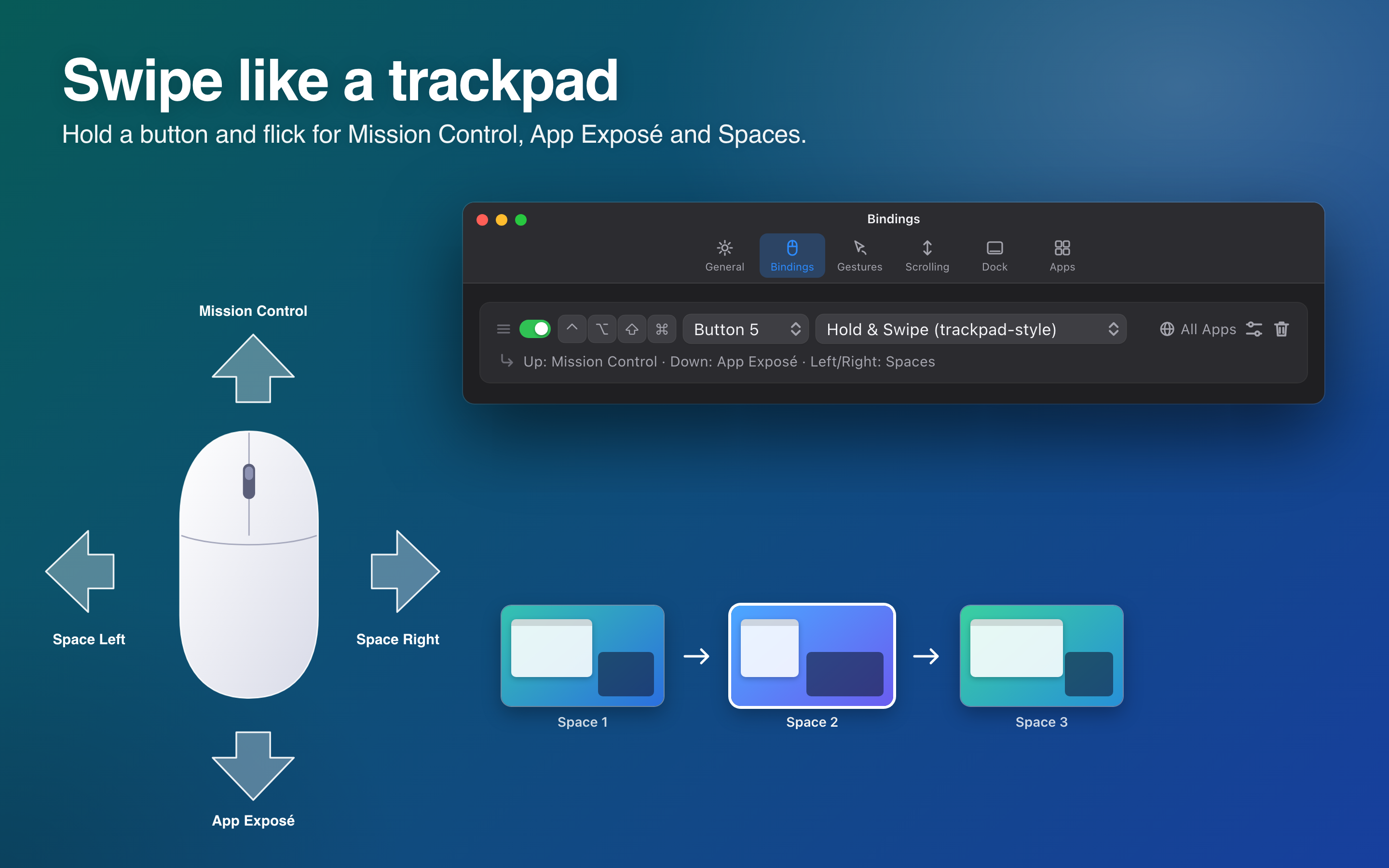
Swipe like a trackpad
Hold Button 5 and swipe: up for Mission Control, down for App Exposé, left or right to change Spaces. The swipe is measured and the action runs when you let go, so it works every time; an optional live transition is in Settings.
“I have not lifted four fingers at once since 1974. I don't intend to start for a laptop.”
EXHIBIT B
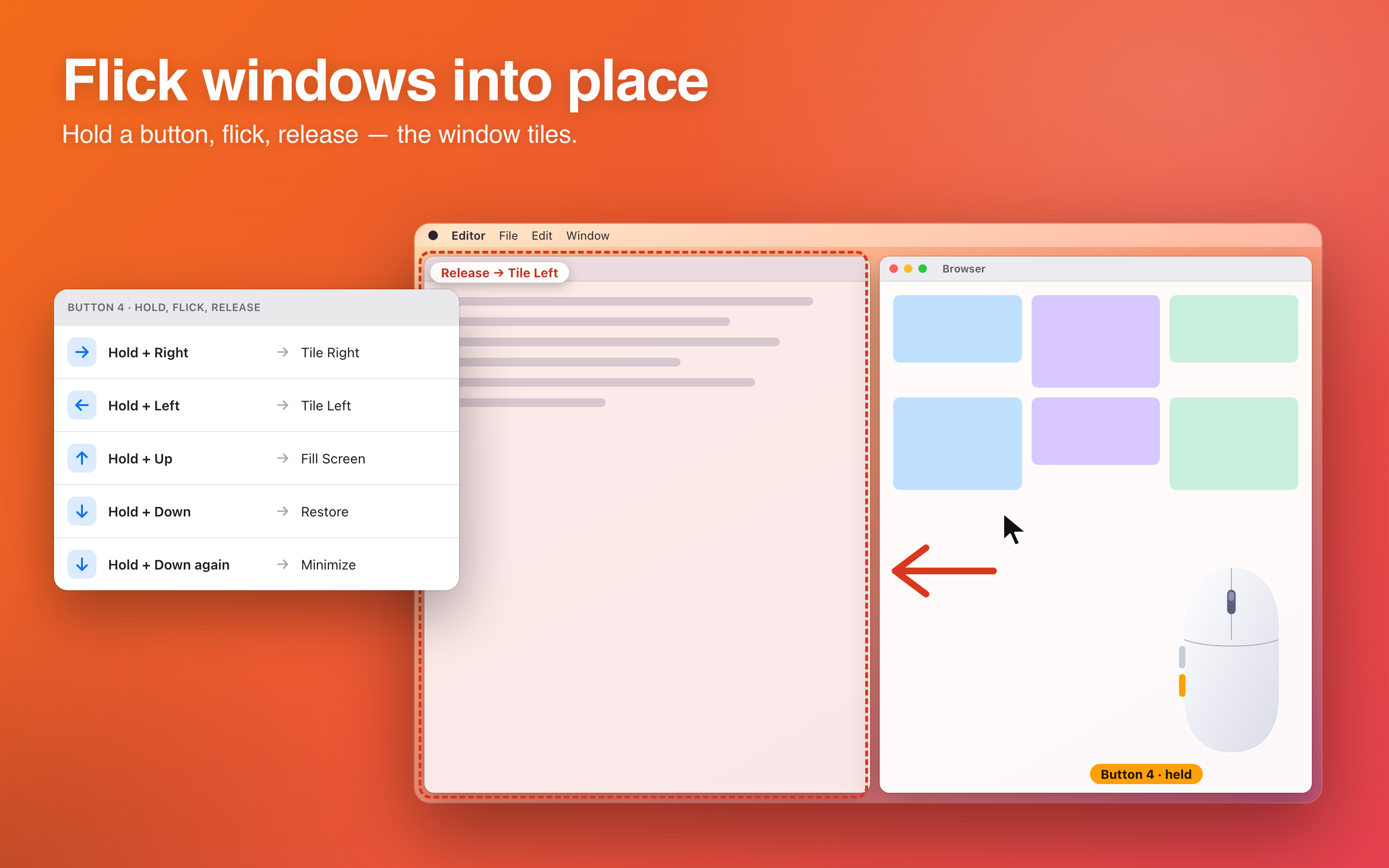
Flick windows into place
Hold Button 4, flick, release. Left or right tiles the window under the pointer to that half of the screen, up fills it, down restores its previous size, and down again minimizes it. ⌃⌥⌘ and the arrow keys do the same from the keyboard.
“A window should know its place. Now it does. Its place is wherever I flicked it.”
EXHIBIT C
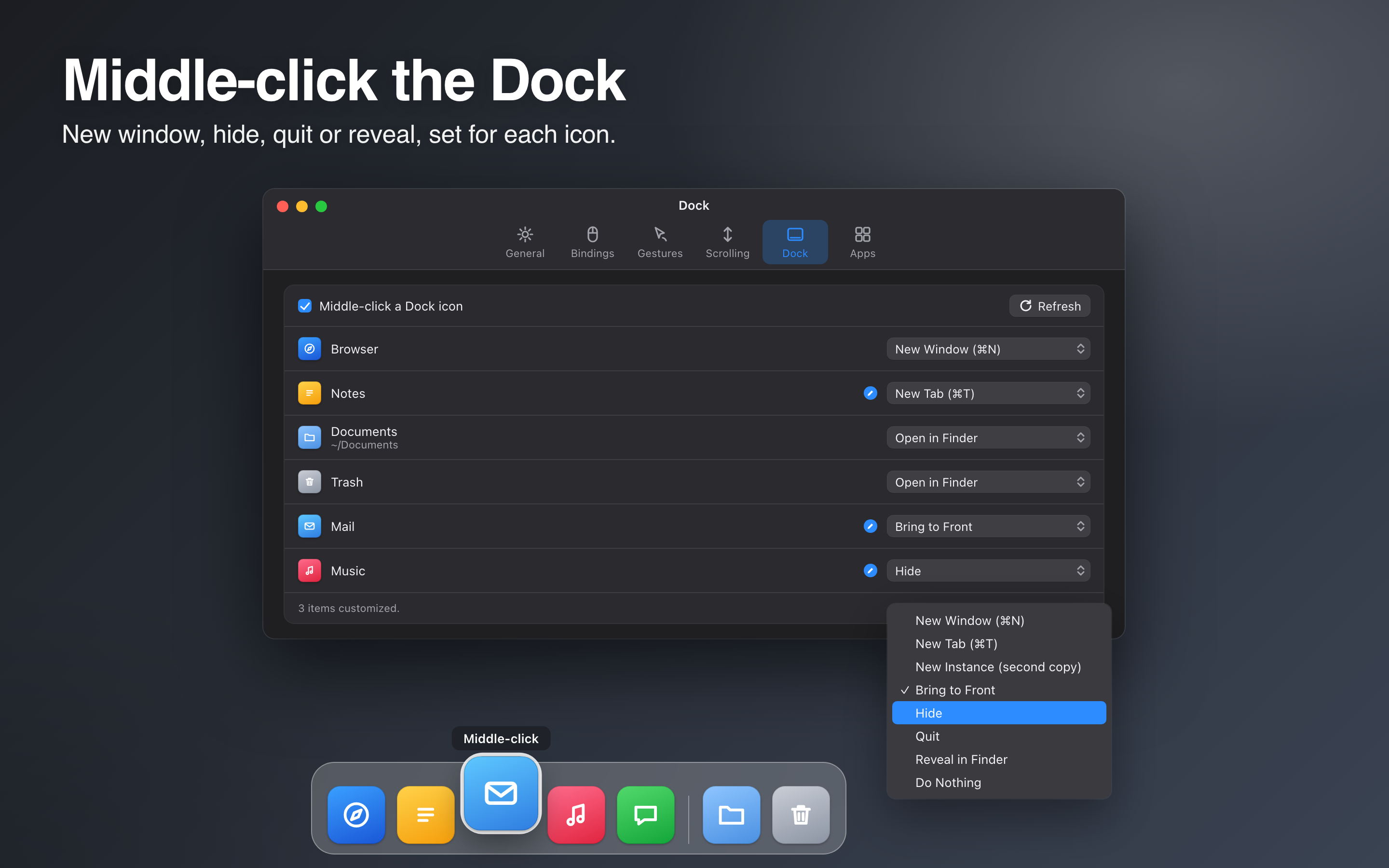
Middle-click the Dock
Choose a middle-click action for each Dock icon: new window, bring to front, hide, quit, reveal in Finder, or nothing. Folders, files and the Trash get their own sensible choices.
“Eleven icons in my Dock. Each one knows exactly what I want. That's more than I can say for the board.”
EXHIBIT D
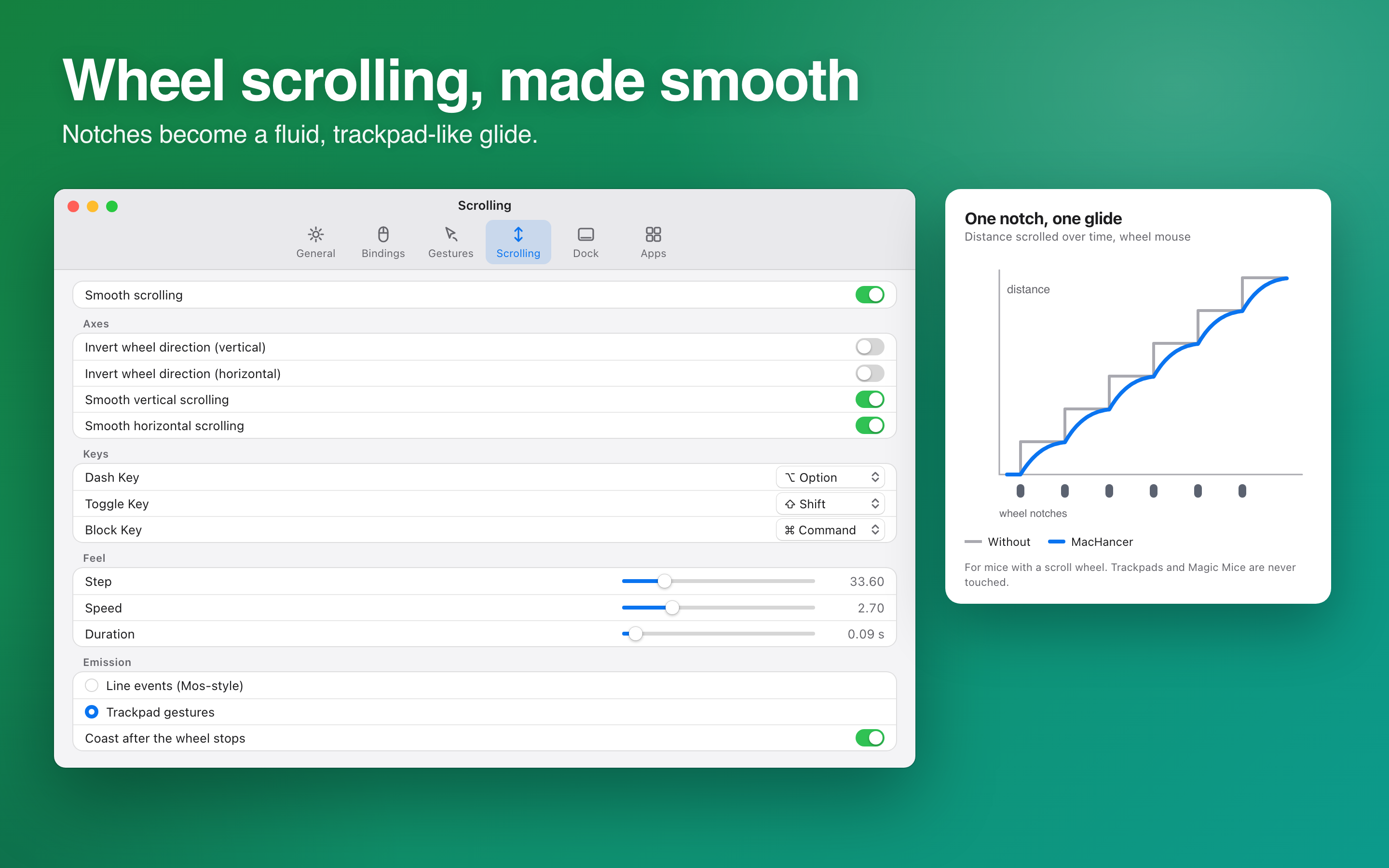
Smooth scrolling
Eased, trackpad-like motion for a wheel mouse, with adjustable distance, smoothness and acceleration. It is for wheel mice only; trackpads and Magic Mouse already glide.
“A wheel that goes clunk is a wheel that has given up. Mine glides. So does the desk.”
EXHIBIT E
Your buttons, your rules
Pair any mouse button or key with a click, double click, hold, drag, chord or swipe, add modifier keys, and reverse left and right per binding. Send keystrokes, launch apps, run Shortcuts, or chain steps into a macro.
“Every button on that mouse is on my payroll now. Yours too.”
EXHIBIT F
Different apps, different rules
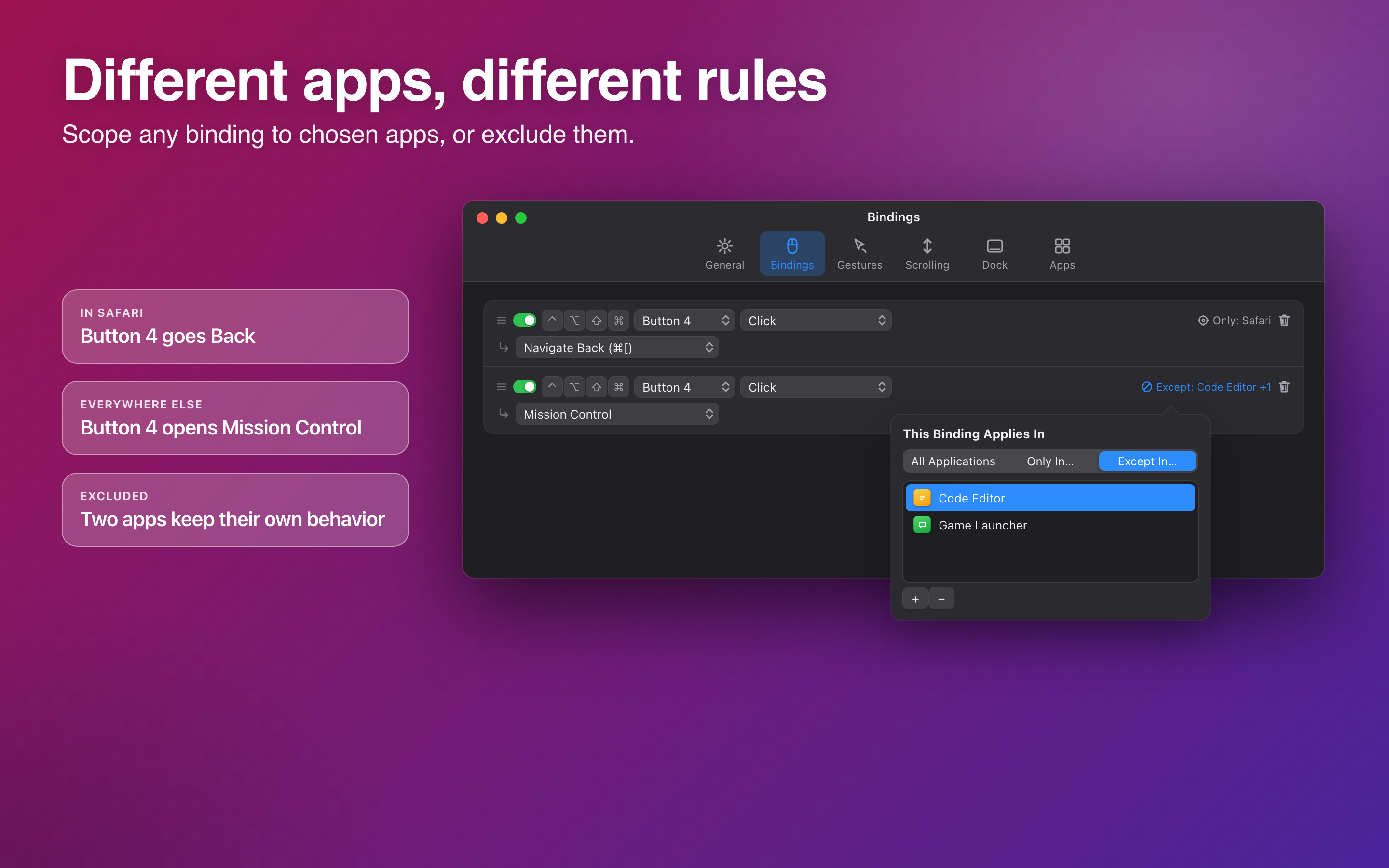
Limit any binding to chosen apps, or exclude apps. Back and Forward in one place, something else everywhere else. Settings export to a single file and import on another Mac.
“Different rooms, different rules. I have four of everything in every room, including the pantry.”
Reel 6 · Hangar Signals
Those Are JustThe Defaults
Every gesture on this page is an ordinary binding you can edit, delete or replace. Start from the built-in set or build your own from nothing.
Any button or key
Button 3 and up, or a keyboard key, with any mix of ⌃ ⌥ ⇧ ⌘.
Nine ways to trigger
Click, double click, hold, drag in four directions, chord with a second button, or Hold & Swipe.
Dozens of actions
Mission Control, Spaces, ten window layouts, media keys, screenshots, close or quit under the pointer.
Make your own
Any keystroke, launch an app, run a Shortcut, remap to another mouse button, or chain steps into a macro.
Per-app rules
Limit a binding to certain apps, or exclude them.
Fine-tune the feel
Hold time, drag distance, swipe distance, reverse left/right per binding, and an optional live swipe transition.
Every Dock icon
The middle-click action, chosen per app, folder, file or Trash.
Back it up
Export your settings to one file and import them on another Mac.
Memorandum · from the Narrator · re: where the gestures came from
The hangar floor is loud. The Founder is louder. In 1955 Miss Pell, who answers most questions with a single number, stopped shouting across it and started signalling instead: a flat hand pushed up for lift, swept aside for next bay, pressed down for show me what's under it. The Skipwrights learned the signals in a week. The Founder never learned them, because nobody signals at him; they simply do what he said.
MacHancer's gestures are those signals, put on a mouse. Miss Pell's floor card is reproduced below for the record. The bottom half was torn off years ago. Nobody has asked who has it.
— for the record
Floor Card No. 5 · H. Pell · two strokes, row then column
·↑→↓←●↑FURTH→EABCD↓?????←?????●?????
● is a press without moving. I and J share a square, as they always have on this floor.
Reel 7 · The Newsreel
Now ShowingSee It on a Real Mac
Thirty-seven seconds, no narration. The Narrator was offered the job and declined; he said the windows speak for themselves.
Reel 8 · Requisition
Form 5-BRequisition Your Copy
SOONFor the Mac
MacHancer 1.0
Coming soon to the Mac App Store. The form has been stamped, filed and sent by pneumatic tube. It is in the tube now. Listen.
Coming soon to the Mac App Store
Requirements and permissions
What it asks for
macOS 14 or later.
Accessibility permission, so it can see and rebind mouse and key events. It asks on first launch and starts working the moment you allow it.
Nothing else. No account, no data collected, no network connections.
Smooth scrolling is for wheel mice, not trackpads or Magic Mouse.
Reel 9 · Questions from the Floor
Asked & AnsweredQuestions
Does my mouse need Buttons 4 and 5?
For the two headline gestures, yes: Hold & Swipe is on Button 5 and tiling is on Button 4 by default. But any button or key can be bound to anything, so a three-button mouse can do plenty, and a plain wheel mouse still gets smooth scrolling. The Button Census above will count yours.
Why does it need Accessibility permission?
To see mouse and key events and act on them, and to move and resize windows. macOS asks you once, in System Settings › Privacy & Security › Accessibility. Nothing it sees is stored or sent anywhere; MacHancer makes no network connections.
Does it work with a trackpad or Magic Mouse?
Bindings work with any mouse buttons the Mac can see. Smooth scrolling only applies to wheel mice, since trackpads and Magic Mouse already scroll smoothly.
Will it fight my browser's Back and Forward?
Only where you want it to. Out of the box, Buttons 4 and 5 do Back and Forward in Safari, which has never supported them on its own, and the gestures everywhere else. Every binding can be limited to some apps or kept out of others.
Can I change the defaults?
All of them. Every gesture is an ordinary binding you can edit, delete or replace, and changes apply at once. Export your settings to a file to keep them or move them to another Mac.
Is Mr. Skipworth a billionaire?
“You really think that little of me?”
Ladies and gentlemen,Your Buttons Have Reported for Duty
MacHancer · a menu-bar app for macOS 14 or later · coming soon to the Mac App Store